

New in 2.5
A big update for exams, assessments and kiosks.
Web Locker 2.5 adds multiple approved websites, anti-cheating, microphone and camera support, longer inactivity timeouts and much more, and every new option can be set from your MDM.
Features
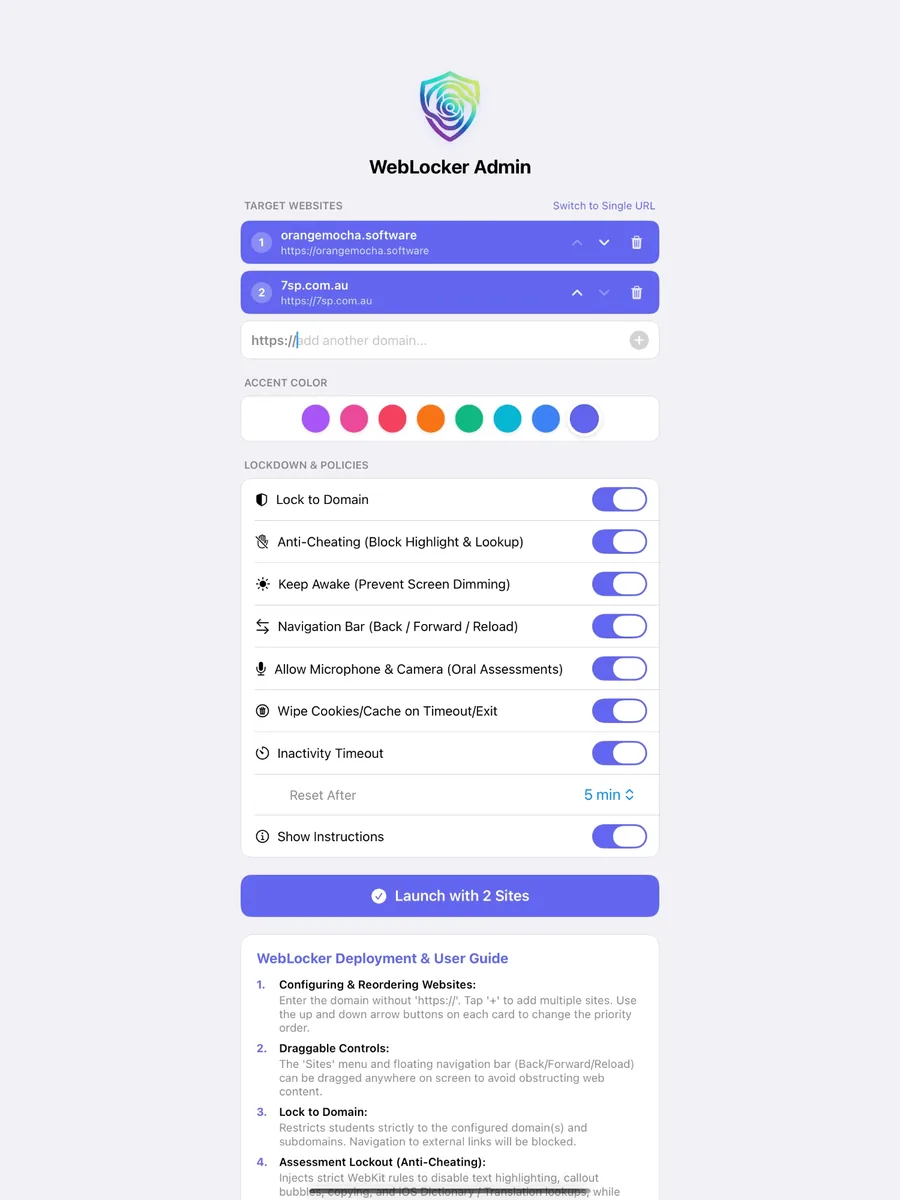
- Multiple approved websites. Lock to a list of sites, reorder them, and switch between them from a draggable “Sites” menu.
- Anti-cheating mode. Turns off text highlighting and the press-and-hold menu, so Copy and Look Up aren’t available. Form fields still work.
- Microphone and camera for oral assessments and recording tasks, with an on/off switch.
- Keep Awake stops the screen dimming or locking during long tasks.
- Back, Forward and Reload buttons you can show or hide.
- Session wipe. Clear cookies, cache and logins when the inactivity timer resets.
- Longer timeouts: 5 to 120 minutes (previously up to 15).
- Eight high-visibility accent colours.
Under the hood
- Lock to Domain is more precise: only the exact site and its subdomains are allowed.
- The blocked-link notice now names the site that was blocked.
- Links that open a new window or pop-up now open inside Web Locker.
- Website alerts, confirmations and text prompts now display.
- Inline, picture-in-picture and full-screen video are supported.
- The MDM summary shows the approved sites, Lock to Domain and anti-cheating status.
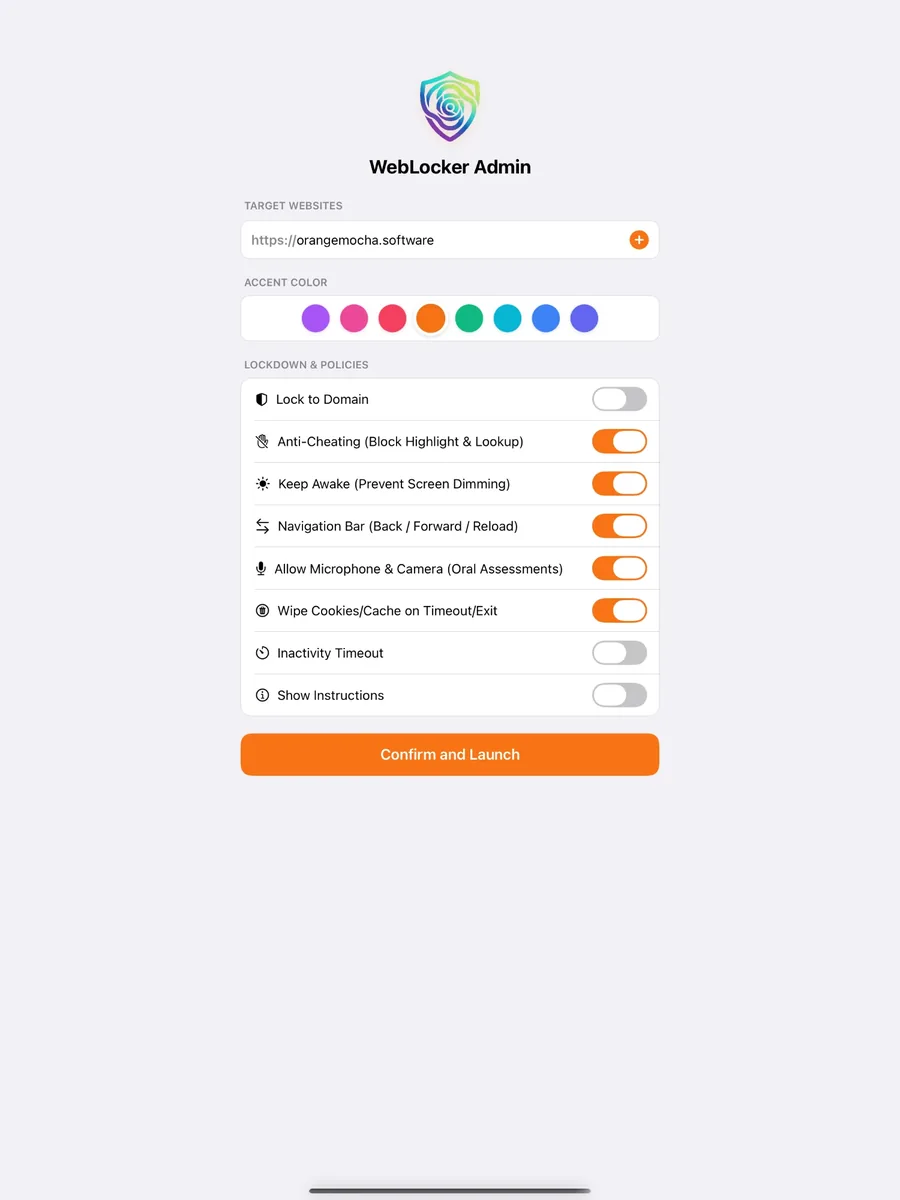
- Redesigned setup screen with a built-in deployment guide.
- Now requires iPadOS 18 or later.
Overview
What is Web Locker?
Web Locker turns an iPad into a focused, single-purpose browser. You choose the websites, and users can’t wander anywhere else. Set it up in minutes on the iPad itself, or manage a whole fleet remotely through Managed App Configuration in your MDM, such as Jamf School.
Lock to your sites
Lock to a single website or a list of approved sites. Lock to Domain blocks links outside those domains and their subdomains, and shows a notice when a link is blocked. Pop-ups and new windows stay inside the app.
Exam & assessment ready
Anti-cheating mode turns off text highlighting and the press-and-hold menu, so Copy and Look Up aren’t available, while answer boxes and form fields keep working.
Microphone & camera
Allow or block microphone and camera access for websites. Ideal for oral assessments, language tasks and recordings.
Inactivity reset
After 5 to 120 minutes without a touch, Web Locker returns to the start page. Optionally clear cookies, cache and logins on reset, so the next person starts fresh.
Keep Awake & full screen
Stop the screen dimming or locking during long tasks. Show Back, Forward and Reload buttons, or hide them for a clean, full-screen kiosk.
Full web support, your colours
Inline and picture-in-picture video, full-screen web content, and website alerts and prompts. Pick from eight high-visibility accent colours for buttons, menus and the toolbar.
Deployment
Flexible control options.
Set up one iPad by hand, or push the same settings to every iPad from your MDM.
On-device setup
No MDM needed. Settings are saved for next time.
- Install Web Locker free from the App Store.
- Choose your website or approved sites and settings on the setup screen.
- Tap Launch.
- Turn on Guided Access (built into iPadOS) to stop users leaving the app. The built-in guide explains how.
MDM control
Push every setting remotely with Managed App Configuration, without touching each iPad.
- Deploy Web Locker from your MDM, such as Jamf School.
- Paste the managed configuration below into the app’s configuration field.
- Web Locker opens straight to your site and shows a short summary of the applied settings.
- Settings set by MDM are locked on the setup screen, and changes you push later are picked up automatically.
Keeping users in the app. Web Locker controls what happens inside the app. To stop users leaving it, use Guided Access on the iPad or a Single App Mode (App Lock) profile from your MDM.
MDM configuration
Managed configuration.
Copy the XML below into the managed configuration field for Web Locker in your MDM, then change the values to suit. Leave out any key you want staff to set on the iPad. Bundle ID: au.com.7sp.weblocker
| Key | Type | Default | What it does |
|---|---|---|---|
approvedWebsites | Array of strings | empty | List of approved sites. The first is the start page. If set, it is used instead of websiteURL. |
websiteURL | String | empty | A single website to lock to, e.g. https://www.example.com. |
restrictNavigation | Boolean | false | Lock to Domain: block links outside the approved sites and their subdomains. |
inactivityTimeoutEnabled | Boolean | false | Return to the start page after a period without a touch. |
inactivityTimeout | Integer | 5 | Minutes before the reset, from 5 to 120. The setup screen offers 5, 10, 15, 30, 45, 60, 90 and 120. |
clearSessionOnReset | Boolean | false | Clear cookies, cache and logins when the inactivity timer resets. |
disableCopyPasteAndLookup | Boolean | false | Anti-cheating: turn off text highlighting, Copy and Look Up on web pages. Form fields still work. |
allowMicrophoneAndCamera | Boolean | true | Let websites use the microphone and camera, for oral assessments and recordings. |
preventScreenDimming | Boolean | false | Keep Awake: stop the screen dimming or auto-locking. |
showNavigationControls | Boolean | true | Show the Back, Forward and Reload buttons. |
themeColor | String (#RRGGBB) | #A855F7 | Accent colour for buttons, menus and the toolbar. The eight built-in colours are:
|
<!-- Web Locker 2.5 managed configuration (au.com.7sp.weblocker) -->
<dict>
    <!-- Sites: use approvedWebsites for several sites, or websiteURL for one. approvedWebsites wins if both are set. -->
    <key>approvedWebsites</key>
    <array>
        <string>https://www.example.com</string>
        <string>https://classroom.example.edu</string>
    </array>
    <key>websiteURL</key>
    <string>https://www.example.com</string>

    <!-- Lock to Domain: block links outside the approved sites and their subdomains -->
    <key>restrictNavigation</key>
    <true/>

    <!-- Inactivity reset: minutes without a touch before returning to the start page -->
    <key>inactivityTimeoutEnabled</key>
    <true/>
    <key>inactivityTimeout</key>
    <integer>15</integer>

    <!-- Clear cookies, cache and logins when the inactivity timer resets -->
    <key>clearSessionOnReset</key>
    <true/>

    <!-- Anti-cheating: block text highlighting, Copy and Look Up -->
    <key>disableCopyPasteAndLookup</key>
    <true/>

    <!-- Allow websites to use the microphone and camera (oral assessments) -->
    <key>allowMicrophoneAndCamera</key>
    <true/>

    <!-- Keep Awake: stop the screen dimming or locking -->
    <key>preventScreenDimming</key>
    <true/>

    <!-- Show the Back / Forward / Reload buttons -->
    <key>showNavigationControls</key>
    <false/>

    <!-- Accent colour as #RRGGBB -->
    <key>themeColor</key>
    <string>#A855F7</string>
</dict>
<?xml version="1.0" encoding="UTF-8"?>
<!DOCTYPE plist PUBLIC "-//Apple//DTD PLIST 1.0//EN" "http://www.apple.com/DTDs/PropertyList-1.0.dtd">
<plist version="1.0">
<dict>
    <!-- Sites: use approvedWebsites for several sites, or websiteURL for one. approvedWebsites wins if both are set. -->
    <key>approvedWebsites</key>
    <array>
        <string>https://www.example.com</string>
        <string>https://classroom.example.edu</string>
    </array>
    <key>websiteURL</key>
    <string>https://www.example.com</string>

    <!-- Lock to Domain: block links outside the approved sites and their subdomains -->
    <key>restrictNavigation</key>
    <true/>

    <!-- Inactivity reset: minutes without a touch before returning to the start page -->
    <key>inactivityTimeoutEnabled</key>
    <true/>
    <key>inactivityTimeout</key>
    <integer>15</integer>

    <!-- Clear cookies, cache and logins when the inactivity timer resets -->
    <key>clearSessionOnReset</key>
    <true/>

    <!-- Anti-cheating: block text highlighting, Copy and Look Up -->
    <key>disableCopyPasteAndLookup</key>
    <true/>

    <!-- Allow websites to use the microphone and camera (oral assessments) -->
    <key>allowMicrophoneAndCamera</key>
    <true/>

    <!-- Keep Awake: stop the screen dimming or locking -->
    <key>preventScreenDimming</key>
    <true/>

    <!-- Show the Back / Forward / Reload buttons -->
    <key>showNavigationControls</key>
    <false/>

    <!-- Accent colour as #RRGGBB -->
    <key>themeColor</key>
    <string>#A855F7</string>
</dict>
</plist>
Some MDMs, including Jamf School, want only the <dict> block. Others expect the full plist, with the standard XML header and <plist version="1.0"> wrapper. Switch the view above to copy the one yours needs.
Requirements